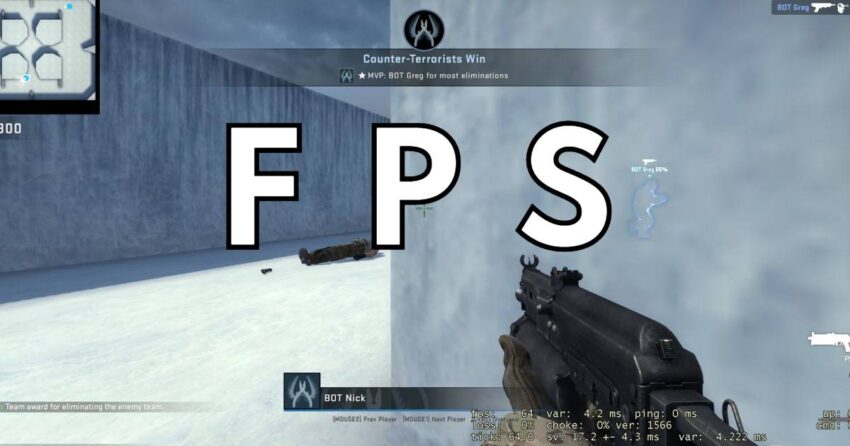
The FPS (Frames Per Second) indicator represents the number of frames rendered in a game within one second. A higher FPS results in smoother gameplay displayed on the screen, providing a more comfortable experience for the player. Low FPS values can cause the game to appear jerky, negatively impacting aiming in CS:GO. Hence, it is often necessary to monitor the FPS value quantitatively.
Let’s consider three main methods to view FPS in CS:GO.
1. Enable FPS monitoring in Steam client settings
This method enables an FPS indicator for all games in your library, offering convenience. Follow these steps:
- Click on “Steam” in the top menu and select “Settings”
- Go to the “In-Game” section and locate the “In-game FPS counter” option
- Choose the desired location to display the counter from the dropdown menu
- Check the “High contrast color” box.
Now, the FPS counter will be displayed in the chosen location for all your games.


2. Console command “cl_showfps”
You can also display FPS in CS:GO using console commands. For example, the command cl_showfps 1 will show the FPS counter in the top left corner.

3. Console command “net_graph 1”
This console command provides additional information. In addition to FPS, it displays several important network connection metrics:
- Ping: Delays between the client and server
- Loss: Network packet loss. A value of 0 indicates a good connection, while an increase indicates an unstable connection, resulting in lag during gameplay
- Choke: The percentage of data packets that failed to reach your client
- Tick: The rate at which data is exchanged between the client and server. Higher tickrates result in smoother gameplay, as the server processes your data more frequently
- SV: The time taken to process one discrete packet
- VAR: A parameter indicating Internet quality. Lower VAR values indicate better performance
- UP: The number of packets sent to the server per second
- CMD: The number of packets received from the server per second.

Additional commands for configuring net_graph:
Position:
- net_graphpos 1: Bottom-right (default)
- net_graphpos 2: Bottom-center
- net_graphpos 3: Bottom-left
Font size:
- net_graphproportionalfont 1: Large font (default)
- net_graphproportionalfont 0: Small font.