What is VAC? VAC stands for “Valve Anti-Cheat,” which is a software system developed by Valve Corporation to combat cheating in games such as CS:GO, Dota 2, and others.
How does VAC work? VAC loads before launching the game and checks the integrity of the original files and components of the game. If any inconsistencies are detected, the system interprets it as an unauthorized attempt to modify the files. VAC then sends information about the violation to Valve’s main server, which can result in the suspension of the offender’s account.
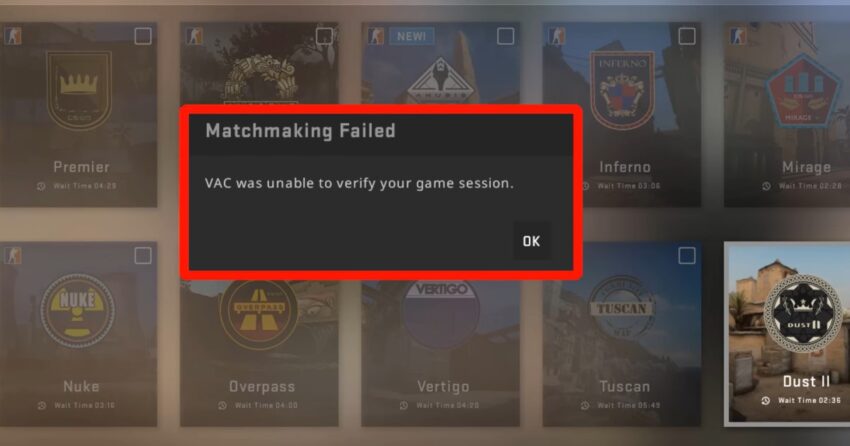
Message: “VAC was unable to verify your game session” As mentioned earlier, VAC verifies the authenticity of all components and files before starting the game. However, there may be situations where VAC cannot initiate the verification process due to various reasons. In such cases, users receive the message “VAC was unable to verify your game session”. There are three major causes for this problem:
- Damage to the original game files, which can be caused by viruses or other malware infecting the PC, hard disk malfunctions, or accidental deletion of game files by the user.
- Game settings issues on the computer, such as file path modifications, internet access problems (e.g., router changes or settings), or time zone misconfigurations.
- Conflict with other programs on the PC, where VAC may be blocked by antivirus software, firewalls, disk cleanup and maintenance programs, or other software.
How to fix the “VAC was unable to verify your game session” issue
Now let’s discuss the known causes of VAC problems and their solutions in detail.
1. Restart the Steam client or the game itself
Simply try restarting the game or the Steam client.
2. Reboot the PC
Often, a simple PC restart can resolve instability caused by numerous open programs, driver installations/upgrades, system updates, or prolonged computer usage. Try restarting your PC.
3. Clear the Steam cache
This is one of the most effective methods. Follow these steps:
- Go to the “View” menu in Steam.
- Select “Settings.”
- Choose the “Downloads” tab.
- Click on “CLEAR DOWNLOAD CACHE” and confirm by clicking “OK” in the prompt.


4. Verify the integrity of game files in Steam
Use a utility provided by Steam to check and repair damaged game files. Follow these steps:
- Go to the “LIBRARY” section in the Steam client
- Right-click on the game you want to verify
- Select “Properties”
- In the “LOCAL FILES” tab, click on “Verify integrity of game files…”
- Wait for the utility to finish checking the files. If any damaged files are found, they will be automatically updated.


5. Antiviruses, firewalls and security software
These programs often block network connections and game components, leading to issues. Check if the game components are listed in your antivirus’ blocked items and configure exclusions if necessary.
6. Problems in the operation of network hardware
Check your network devices and ping the game server to ensure stable connectivity.
7. Wrong the PC’s time zone settings
Check sure your PC’s time zone settings are configured correctly, as this is essential for VAC to function properly.
8. Conflict with other programs
It is known that the VAC system can conflict with the following programs:
- CCleaner
- Steam Idlers
- Sandboxie
- Cheat Engine
- Powershell
- IObit Start Menu 8
- Process Hacker
- DLL Injectors
- Hypervisors
If you have any of these programs installed, try disabling them.
9. Damage to Steam.dll and SteamUI.dll verification libraries
Possible crashes may occur due to damage to the verification libraries Steam.dll and SteamUI.dll.
- Close all games and the Steam client
- Open the folder with the Steam client (default location: C:\Program Files (x86)\Steam)
- Delete the Steam.dll and SteamUI.dll files
- Launch the Steam client.
After launching, the system will automatically download new undamaged libraries.

10. Maintenance using SteamService utility The SteamService utility
It is designed to check and restore Steam components.
- Hover the mouse cursor over the Start button in Windows 10 and right-click
- Select “Run” from the menu
- In the opened window, enter the command to launch the utility: C:\Program Files (x86)\Steam\bin\SteamService.exe /repair and press “Enter” or click “OK”
Check if the error when launching the game has disappeared.

11. Disconnecting and reconnecting to the network in the Steam client
- Close Steam and reopen it.
- Go to the “Steam” menu
- Select “Go Offline…”
- In the next window, click “ENTER ONLINE MODE”
- Go to the “Steam” menu > “Go Online…”
- In the next window, click “LEAVE OFFLINE MODE”.


12. DEP (Data Execution Prevention) is disabled in Windows
This technology is designed to prevent potential virus attacks through non-executable memory addresses. However, some programs may require disabling DEP. If DEP is disabled, VAC will prevent the game from launching as there is a possibility of malware infection.
If you have programs that disable DEP, you need to make the following settings:
Enable DEP
- Open the Windows console using the “cmd” command in the Run window
- Enter the command in the console: bcdedit.exe /set {current} nx OptIn
Add programs to DEP exceptions
- “Control Panel” > “System” > “Advanced System Settings” > “Advanced” > “Performance” > “Settings” > “Data Execution Prevention”
- Switch to “Turn on DEP for all programs and services except those I select” mode
- Add the necessary programs to DEP exceptions.


13. Issues with the Steam service
There may be situations where temporary technical issues occur on the Steam service. In this case, you need to wait a bit until the company resolves the problems.
14. Using illegal game versions and Windows operating systems
Use legitimate software that is regularly updated and includes the latest patches. This will reduce the risk of PC infection and ensure stable operation of the operating system and programs.
15. Reinstalling software
If nothing helps, try completely uninstalling the games and the Steam client, and then reinstall them. It’s recommended to use specialized programs to uninstall and clean the registry of any remaining program traces.